
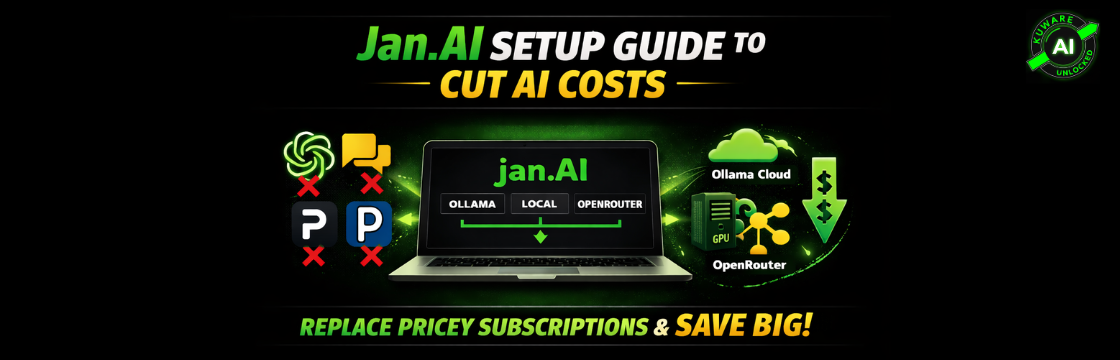
Use Ollama Cloud, local models, and OpenRouter , all from one interface, without paying for another chat subscription
Why Jan.AI?
Most people exploring AI end up with the same problem: too many subscriptions. ChatGPT for general chat, Claude for reasoning and coding, Perplexity for search, maybe a Gemini subscription on top. Each one is a flat monthly fee, whether you use it heavily or not.
Jan.AI takes a different approach. It is a free, open-source desktop chat application that acts as a frontend for any AI model or provider. You bring your own API keys or run models locally, and Jan handles the chat interface, conversation history, and model switching. The app itself costs nothing.
This matters because the real cost of AI is the inference, the actual compute running the model. Jan separates the interface from the inference, which means you can:
- Use cheap or free models for everyday questions
- Route expensive models only for tasks that actually need them
- Run models locally on your own hardware for private or offline work
- Swap providers instantly without changing your workflow
- Avoid paying for a premium chat app subscription on top of your API costs
For anyone running a business or doing serious AI work, this kind of flexibility translates directly into cost savings and control.
The Real Cost of AI Subscriptions
Here is what a typical power user ends up spending:
| Service | Cost | What You Get |
|---|---|---|
| ChatGPT Plus | $20/month | GPT-4o access, some GPT-4 limits |
| Claude Max | $100/month | Higher limits, Opus access |
| Perplexity Pro | $20/month | AI-powered search |
| Gemini Advanced | $20/month | Google’s flagship model |
| Total | $160/month | For chat interfaces you may use partially |
With Jan.AI plus strategic use of pay-per-token APIs, most business users can cover their actual usage for $20-40/month while getting access to more models than any single subscription offers. The key is routing , using the right model for the right task instead of paying for premium access everywhere.
What Jan.AI Actually Is
Jan.AI is an open-source desktop application (Windows, Mac, Linux) that provides a chat interface similar to ChatGPT but connects to models you configure. It supports:
- Local models via its built-in llama.cpp engine (runs on your GPU or CPU)
- Remote models via any OpenAI-compatible API endpoint
- Multiple providers simultaneously, switch with a dropdown
- MCP (Model Context Protocol) servers for tools like web search and file access
- Custom assistants with different system prompts and model assignments
- Full conversation history stored locally on your machine
The key phrase is “OpenAI-compatible API.” Almost every major model provider, Ollama, OpenRouter, Groq, Mistral, Together.ai, now exposes an OpenAI-compatible endpoint. This means Jan can talk to all of them using the same connection format.
Jan.AI v0.7.7 is the current version as of this writing. The interface has matured significantly and model provider setup is straightforward. Download from jan.ai.
The Three-Provider Strategy
The most cost-effective Jan.AI setup uses three providers for different situations:
| Provider | Best For | Why |
|---|---|---|
| Ollama Cloud | Heavy tasks, best models | Pay per use, massive model selection, no local hardware needed |
| Ollama Local | Private/offline work | Free, runs on your GPU, good for 7B-14B models |
| OpenRouter | Model variety, cost control | Access to 200+ models, pay only for what you use, easy comparison |
You configure all three in Jan.AI and switch between them per conversation. No terminal, no config files, just a model selector dropdown.
Setting Up Ollama Cloud
Ollama Cloud (ollama.com) gives you API access to a large catalog of open-source models, including Qwen3 Coder, DeepSeek V3, Devstral, Gemma3, and others, billed per token. For most users the costs are very low for casual chat usage.
Step 1: Get Your API Key
Sign up at ollama.com, go to your account settings, and generate an API key. Keep it safe, do not share it publicly.
Step 2: Add Ollama Cloud in Jan.AI
- Open Jan.AI → Settings (gear icon, bottom left)
- Go to Model Providers
- Click Add Provider → choose OpenAI Compatible
- Fill in the fields:
| Field | Value |
|---|---|
| Provider Name | Ollama Cloud |
| Base URL | https://ollama.com/v1 |
| API Key | Your Ollama API key |
- Save, then click the refresh icon next to Models
- Your full model list will load automatically
⚠️ Important: The correct Base URL is https://ollama.com/v1 (not api.ollama.com/v1). The api subdomain redirects and does not work with Jan’s OpenAI-compatible requests.
Recommended Ollama Cloud Models for Chat
| Model | Best For |
|---|---|
| gemma3:12b | Fast, capable, good for general Q&A |
| qwen3-coder-next | Best for coding and technical tasks |
| devstral-2:123b | Strong reasoning, Mistral-based |
| deepseek-v3.1:671b | Excellent for complex analysis |
| ministral-3:8b | Very fast, low cost, simple tasks |
Setting Up Local Ollama
For private conversations, offline use, or when you want zero API costs, running Ollama locally on your own hardware is the answer. With an NVIDIA GPU you can run 7B-14B models comfortably.
Step 1: Install Ollama on Windows
Download from ollama.com/download → Windows installer. It installs as a background service that starts automatically. The API runs on http://localhost:11434.
Step 2: Pull Models
Open PowerShell and pull models sized for your GPU VRAM:
					# Check your VRAM first
nvidia-smi


# Good models by VRAM requirement
ollama pull phi4-mini          # ~2GB VRAM - very fast
ollama pull gemma3:4b          # ~3GB VRAM - good general chat
ollama pull qwen2.5-coder:7b   # ~4GB VRAM - coding
ollama pull mistral:7b         # ~4GB VRAM - general purpose
ollama pull gemma3:12b         # ~8GB VRAM - better quality
Step 3: Add Local Ollama in Jan.AI
| Field | Value |
|---|---|
| Provider Name | Ollama Local |
| Base URL | http://localhost:11434/v1 |
| API Key | ollama |
The API key “ollama” is a required placeholder, local Ollama does not actually authenticate, but Jan requires something in the field.
Setting Up OpenRouter
OpenRouter (openrouter.ai) is a unified API that gives you access to over 200 models from every major provider, OpenAI, Anthropic, Google, Meta, Mistral, and many others, through a single API key. You pay per token at rates that vary by model, and many models have free tiers.
This is where Jan.AI really shines as a cost-saving tool. Instead of subscribing to ChatGPT Plus ($20/month) just to access GPT-4o, you can add OpenRouter to Jan and pay only for the tokens you actually use. Light users often spend under $5/month this way.
Why OpenRouter Makes Sense
- One API key for every model, GPT-4o, Claude, Llama, Gemini, Mistral, all of them
- Many models are free on OpenRouter (Llama 3, Gemma, Mistral 7B and others)
- Pay-as-you-go, no monthly commitment
- Instant model comparison, same conversation, different models
- Automatic fallback to backup models if primary is down
Step 1: Get Your OpenRouter API Key
Sign up at openrouter.ai → go to Keys → Create Key. Add some credit ($5-10 is plenty to start).
Step 2: Add OpenRouter in Jan.AI
OpenRouter is already a built-in provider in Jan.AI v0.7.7. Go to Settings → Model Providers → find OpenRouter in the list and add your API key. Models load automatically.
If it’s not in the built-in list, add it manually:
| Field | Value |
|---|---|
| Provider Name | OpenRouter |
| Base URL | https://openrouter.ai/api/v1 |
| API Key | Your OpenRouter key |
Best Free Models on OpenRouter
| Model ID | Notes |
|---|---|
| meta-llama/llama-3.1-8b-instruct:free | Fast, capable general chat |
| google/gemma-2-9b-it:free | Good for Q&A and analysis |
| mistralai/mistral-7b-instruct:free | Solid general purpose |
| microsoft/phi-3-mini-128k-instruct:free | Small but smart |
Tip: OpenRouter model IDs use the format provider/model-name. When adding models manually in Jan, use the full ID exactly as shown on the OpenRouter models page.
The Practical Switching Strategy
Once all three providers are configured, the workflow is simple. Before starting a conversation, click the model selector at the top of the chat and pick based on what you need:
| Task | Recommended Model | Reason |
|---|---|---|
| Quick factual question | ministral-3:8b (Ollama Cloud) | Fast, cheap, no overkill |
| Private/sensitive topic | gemma3:4b (Ollama Local) | Never leaves your machine |
| Complex reasoning task | deepseek-v3.1:671b (Ollama Cloud) | Best quality for hard problems |
| Coding help | qwen3-coder-next (Ollama Cloud) | Purpose-built for code |
| Try GPT-4o or Claude | OpenRouter | Pay only for that conversation |
| General everyday chat | llama-3.1-8b:free (OpenRouter) | Zero cost |
| Offline, no internet | mistral:7b (Ollama Local) | Fully local |
This is the key insight: you are not locked into one model for everything. Each conversation can use whatever model makes sense. Most daily questions can be handled by free or near-free models, while you reserve the expensive ones for tasks that actually justify the cost.
Tools and Web Search via MCP
Jan.AI v0.7.7 supports MCP (Model Context Protocol) servers, which give models access to external tools. The most useful for everyday chat is web search.
Jan comes with several MCP servers pre-installed:
- Serper, Google search API (needs free API key from serper.dev)
- Exa, AI-powered search (needs free API key from exa.ai)
- Jan Browser MCP, uses your Chrome browser for search (needs Chrome extension)
- Fetch, retrieves web page content by URL
- Sequential Thinking, structured reasoning chains
The easiest setup is Serper: sign up at serper.dev (free tier gives 2500 searches/month), get your API key, and add it to the Serper MCP server config in Settings → MCP Servers.
⚠️ Tool calling only works reliably with models that support function calling. Qwen3, Devstral, and Gemma3 models generally work well. Very small models or older models may output the search JSON as text instead of executing the tool. If this happens, switch to a larger model.
Real Cost Comparison
Here is how the economics work out for a typical business user doing moderate AI usage:
| Setup | What It Includes | Typical Monthly Cost |
|---|---|---|
| Heavy subscription stack | ChatGPT Plus + Claude Pro + Perplexity | $60-140/month flat |
| Jan + OpenRouter only | Free models + occasional paid | $0-10/month |
| Jan + Ollama Cloud + OpenRouter | Full flexibility, best models | $15-30/month |
| Jan + Local Ollama only | Full offline, private | $0/month (hardware cost only) |
The savings are significant for anyone currently paying for multiple chat subscriptions. The tradeoff is a small amount of setup time and the need to think about which model to use, which most experienced AI users do anyway.
Practical Tips
Set up Assistants for common workflows
Jan’s Assistants feature lets you save system prompts with a specific model assigned. Create one for coding (Qwen3 Coder + detailed code review prompt), one for writing (Devstral + editorial style guide), one for research (with web search enabled). Switch personas instantly.
Use local models for anything sensitive
Anything involving client data, personal information, or confidential business details should go through a local model. Ollama Local never sends data outside your machine. This is a significant advantage over any cloud-only chat interface.
OpenRouter for model benchmarking
When evaluating which model to use for a specific task, OpenRouter makes it easy to try the same prompt on GPT-4o, Claude Sonnet, and Llama 3.1 back to back without separate subscriptions. Pay a few cents per test instead of committing to monthly fees.
Disable tools for simple questions
Web search tools add latency and cost. For questions the model can answer from training data (history, concepts, writing help), disable tools in the conversation. Enable them only when current information is actually needed.
Getting Started Checklist
- Download Jan.AI from jan.ai, free, available for Windows, Mac, Linux
- Sign up for Ollama Cloud at ollama.com, get API key
- Sign up for OpenRouter at openrouter.ai, add $5 credit, get API key
- Install Ollama on Windows from ollama.com/download
- Pull a local model: ollama pull gemma3:4b
- Add all three providers in Jan → Settings → Model Providers
- Test each provider with a simple message
Total setup time: about 30 minutes. After that you have a flexible AI workspace that costs a fraction of a full subscription stack.
The Bigger Picture
Jan.AI represents a shift in how to think about AI tooling. Instead of paying for access to a walled garden of models from one company, you assemble your own stack: a good frontend, a selection of model providers, and the discipline to route tasks to the right model.
This is the “AI you own, not rent” philosophy in practice. The interface is yours (open source, runs locally). The data stays with you (conversation history on your machine). The costs are usage-based, not subscription-based. And you are not locked into any single provider’s decisions about what models to offer or how to price them.
For business owners, consultants, and developers doing serious AI work, this setup pays for itself quickly, both in direct subscription savings and in the flexibility to use the best tool for each job rather than whatever your current subscription happens to include.
